Hello everyone, I’m new here and new to 3D scanning. I just bought Metrox not long ago; it’s my first scanner. I have experience in 3D modeling and design, but not with 3D scanners.
I’ve spent the last few days testing and experimenting with Revoscan Metrox to learn it and understand how it works. I’ve had very good results.
However, I’d like to request a few additions to this software:
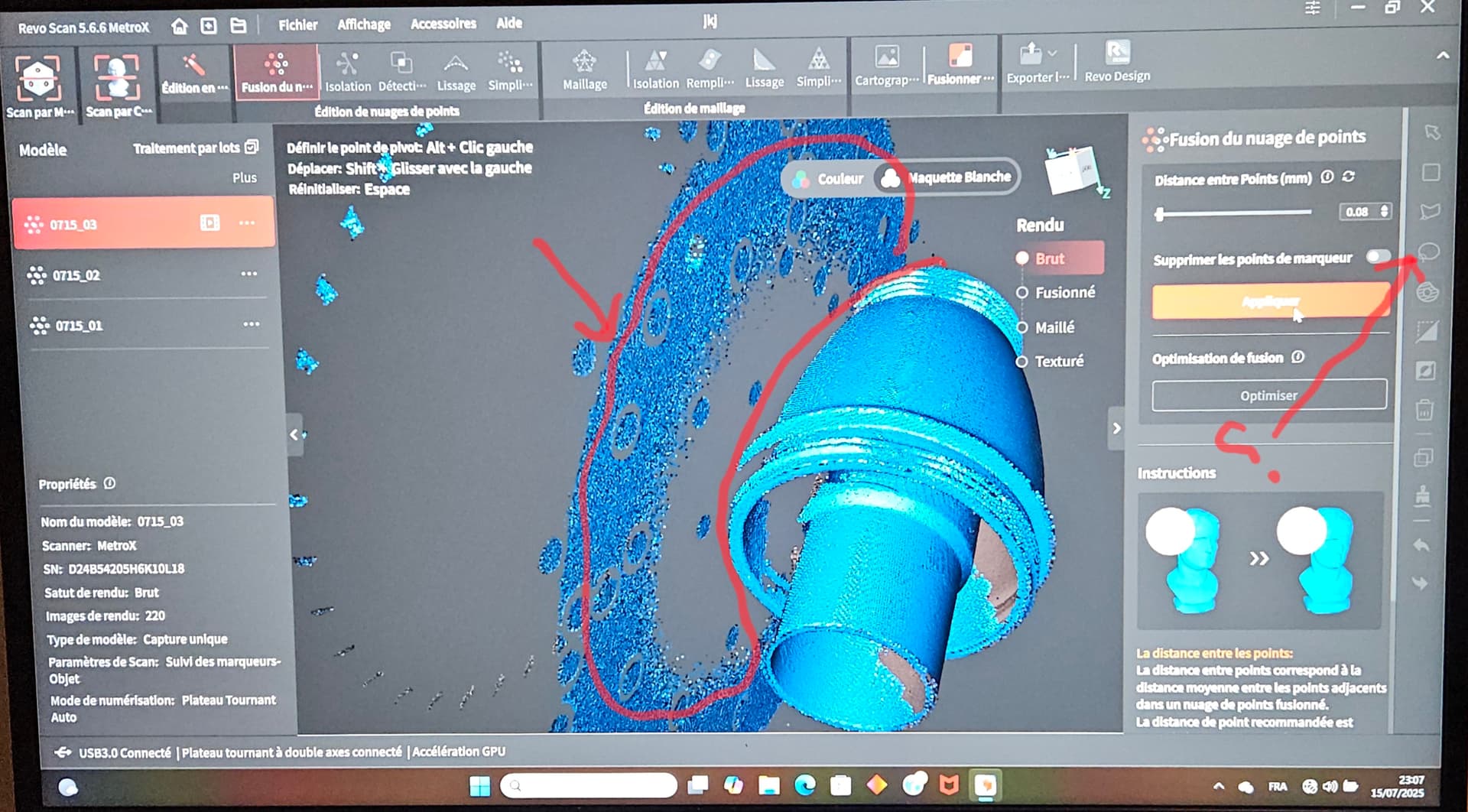
Once the scan is complete, is it possible to add the ability to delete unwanted parts of the scan before isolating the points? This saves a lot of time during calculations. (I don’t know if this is technically possible for developers.)
For the merge option, is it possible to add the ability to preserve the number of points for each scan and not reduce their density? Once the merge is complete, this allows me to visualize and inspect the defects of both scans together. Since corners and surfaces not sufficiently reached by the scanner tend to create distortions and incorrect data, I can inspect and clean them efficiently or export them to modeling software to do this.
The interesting thing here is that mutual inspection offers optimal efficiency for cleaning. It’s easier to identify the bad points from the good points on two merged scans. Once the cleanup is complete, I can redo the merge, this time with the option to reduce the number of points.
Do you plan to increase the resolution of the point isolation in laser mode, like 0.1 mm, in the near future? Currently the limit is 0.15 mm.
sorry if there are any mistakes I use Google translate to write in English
Only scanning using Full Field or Auto mode allows you to remove parts before fusing .
Sadly Laser mode don’t have that function yet .
The merge option here is to fuse the points together and eliminate the parts that are not needed , it is called registration , the amount of original points is not really any indicator of anything .
Try to use Cloud Compare and manually align your point cloud , then you can export to your modeling software both scan aligned for the purpose you looking for .
Right now manual merging function is not yet available but truly needed like for yesterday so hopefully this feature going to be added in the future .
The 0.15 mm delivered the best results with laser mode , anything lower would induce too many noises that will alter the overall volume accuracy and do not improve much at all, remember the scanner accuracy is build into the hardware and not the resolution .
If you need higher resolution Auto mode deliver the best option without compromising the volume accuracy .
I’ve never used Cloudcompar, but I’ll try it and see if it meets my needs. I actually wanted the developers to offer the user both options: (with reduction) and (without reduction). I completely agree with you about the usefulness of reducing the number of points, but this is done at a final stage when the user sees that both scans are clean and ready. The reason I’m making this request is that I’ve noticed that the software tends to delete points that are behind other points, for example, when in reality, the points deleted by the software are the ones that should be kept.
You might ask me to clean up separately for each scan before clicking merge. I agree. But cleaning is more efficient when two scans are superimposed on each other, which greatly facilitates cleaning and the final accuracy of the model… …this is just my opinion based on my experience, perhaps other users more experienced in the field of 3D scanning have something else to say about this.
In any case, offering this extra for the user is a plus for flexibility.
It is under the the 3 dots when you select the scan , you will move to RAW edit , after that you move to fusing without the extras , remember raw edit don’t have undo , once removed parts are gone.
By the way, I made a mistake with the merge feature. I just ran some more tests, and it turns out the software isn’t deleting the correct points. It’s my fault. I used the overlap detection option with a high distance, which led to the deletion of all the points that were under other points.
I’m sorry.
Thank you for your replies.
The software is super easy to understand.
The merge option is magnificent and powerful; it manages to bring two scans together as precisely as possible. Wow.
Practice with it , you going to find lots of stuff and of course try to get your own workflow for the best results .
The lose points option will remove any points that are not connected to main scan and the selection is based on the % you selected as you already found out.
The overlapped points only removes the overlapped points like after merge if there are duplicates . It do not remove fragments from the scan .
Glad to hear you getting quick familiar with and the best way to learn by own mistakes.
With good scan to begin with you will have less stuff to clean and edit .
For example if you use Full Field don’t use more than 360 frames per one angle scan , and with Auto mode no.kore than 36 frames per one rotation
Overdoing it will create lots of overlapped points and longer edit time.
With laser mode you need to capture minimal 8000 frames since the capture points area is only 800K of points per frame vs 7 milion with Auto mode per frame.